How to Add an AI Chatbot to Your Small Business Website (No Coding Required)
A step-by-step guide for local business owners on how to add an AI website assistant without writing a single line of code.
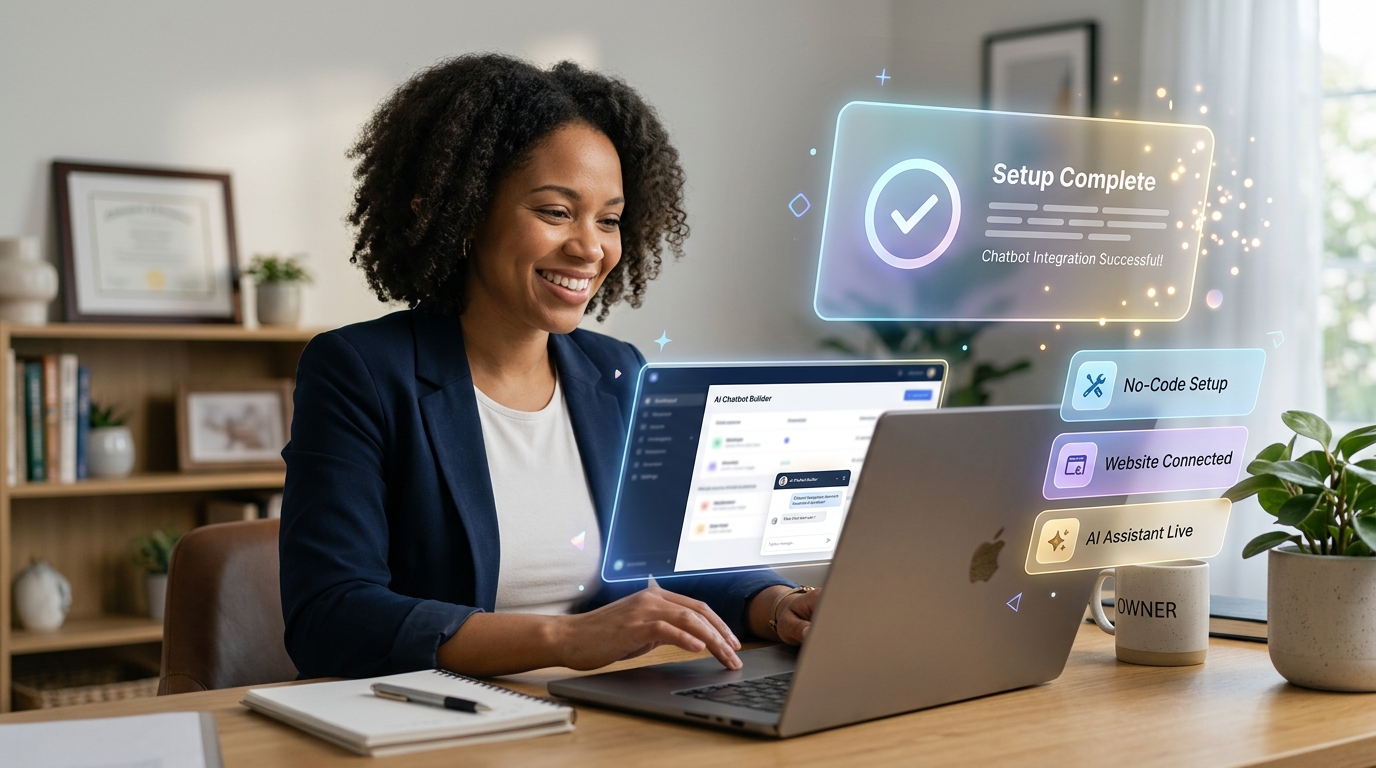
One of the biggest misconceptions about artificial intelligence is that you need to be a software engineer to use it. Many local business owners hear the phrase “AI website assistant” and immediately assume it involves complex programming, expensive developers, and weeks of setup time.
The reality is completely different.
A practical guide with a similar angle is Top 5 Chatbot Mistakes.
Today’s AI tools are built specifically for non-technical business owners. Adding a lead-generating chatbot to your website is now as simple as embedding a YouTube video.
In this guide, we will walk you through the exact steps to add an AI assistant to your local business website, completely code-free.

Step 1: Prepare Your Business Information (The “Brain”)
Before you install anything on your website, you need to tell the AI what it should know. Unlike old-school chatbots that required you to build confusing decision trees (“If user says A, then say B”), modern AI uses plain English context.
Think of this step like training a new receptionist on their first day. You simply write down the facts.
Another useful resource is AI Assistant vs Live Chat.
Gather the following information into a simple document:
- Core Details: Your business name, address, phone number, and opening hours.
- Services Provided: A clear list of what you do (e.g., “We do emergency plumbing, pipe repair, and water heater installation”).
- Pricing Rules: If you have set prices, list them. If you do custom quotes, explicitly write: “We do not give exact prices online. We provide custom estimates after a free inspection.”
- Lead Capture Goal: What details do you need from the customer? (e.g., “Always ask the visitor for their name, phone number, and a brief description of their problem.”)
By organizing this information, you give the AI everything it needs to confidently answer questions and capture leads on your behalf.
Step 2: Configure the Welcome Message
The first thing a visitor sees when they click the chat bubble is the welcome message. This small piece of text determines whether the visitor will engage or close the window.
A bad welcome message is vague: “Hi, how can I help you?”
A good welcome message is specific, sets expectations, and guides the user toward your goal.
If you run a car service business, your welcome message should say: “Hi! I can help you check our services, answer maintenance questions, or capture your details to schedule a diagnostics appointment. What do you need help with today?”
This tells the user exactly what the AI can do, reducing friction and encouraging them to start the conversation.
Step 3: Add the Snippet to Your Website
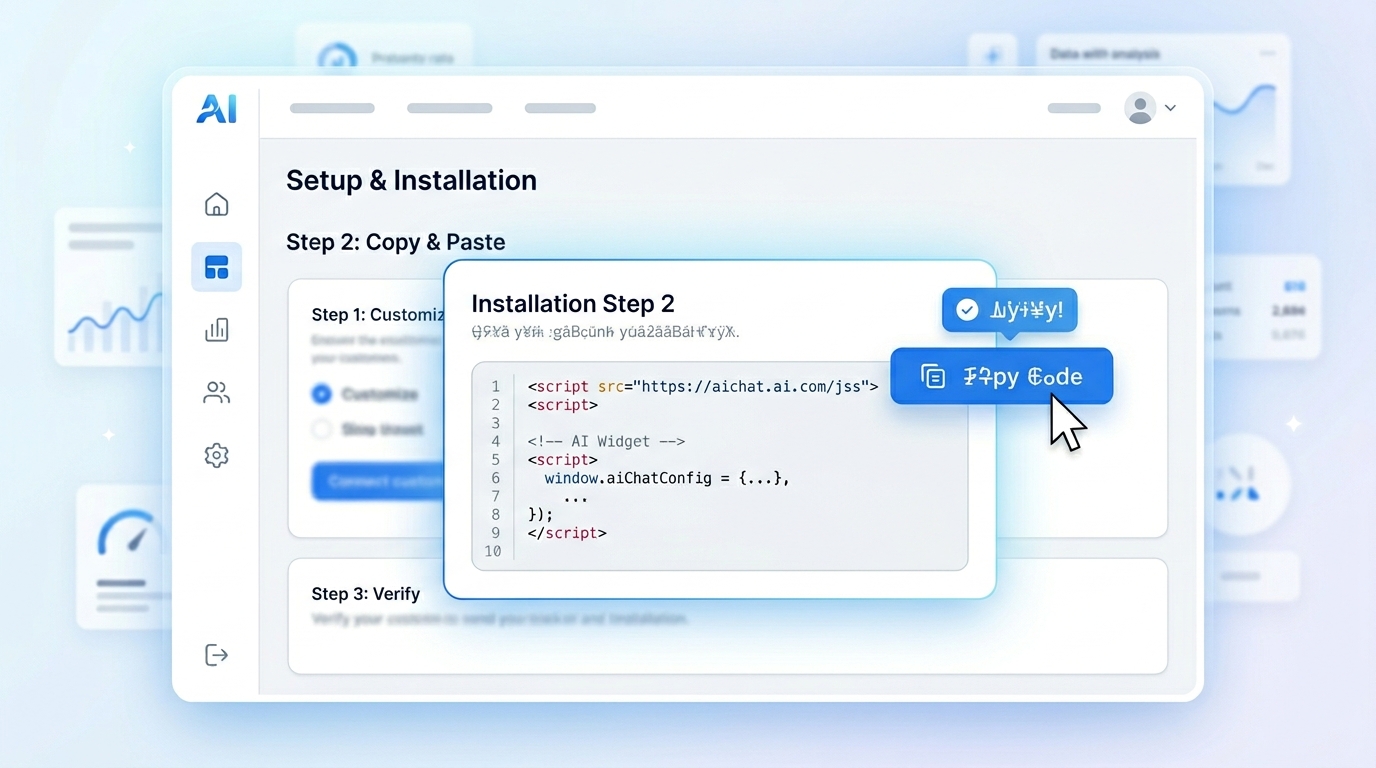
Once your AI is configured, the software will generate an installation snippet. This is usually a short piece of code that looks something like this:
<script src="https://example.com/widget.js" defer></script>
Do not let the code intimidate you. You do not need to understand it; you just need to copy it.
Here is how you add it to the most popular website builders:
WordPress
- Log in to your WordPress dashboard.
- If you have a theme with a “Custom Code” or “Header/Footer Scripts” section, paste the code into the Footer section.
- Alternatively, you can download a free plugin like “Insert Headers and Footers,” paste your code in the footer box, and click Save.
Wix & Squarespace
- Go to your site settings.
- Look for the “Advanced” or “Custom Code” section.
- Paste the snippet into the designated “Footer” or “End of Body” area.
- Save and publish your site.
Custom HTML Sites
If you hired a developer to build a custom website, simply email them the snippet and say: “Please add this script tag right before the closing </body> tag on all pages.” It will take them less than two minutes to do.
Step 4: Test the Lead Delivery Workflow
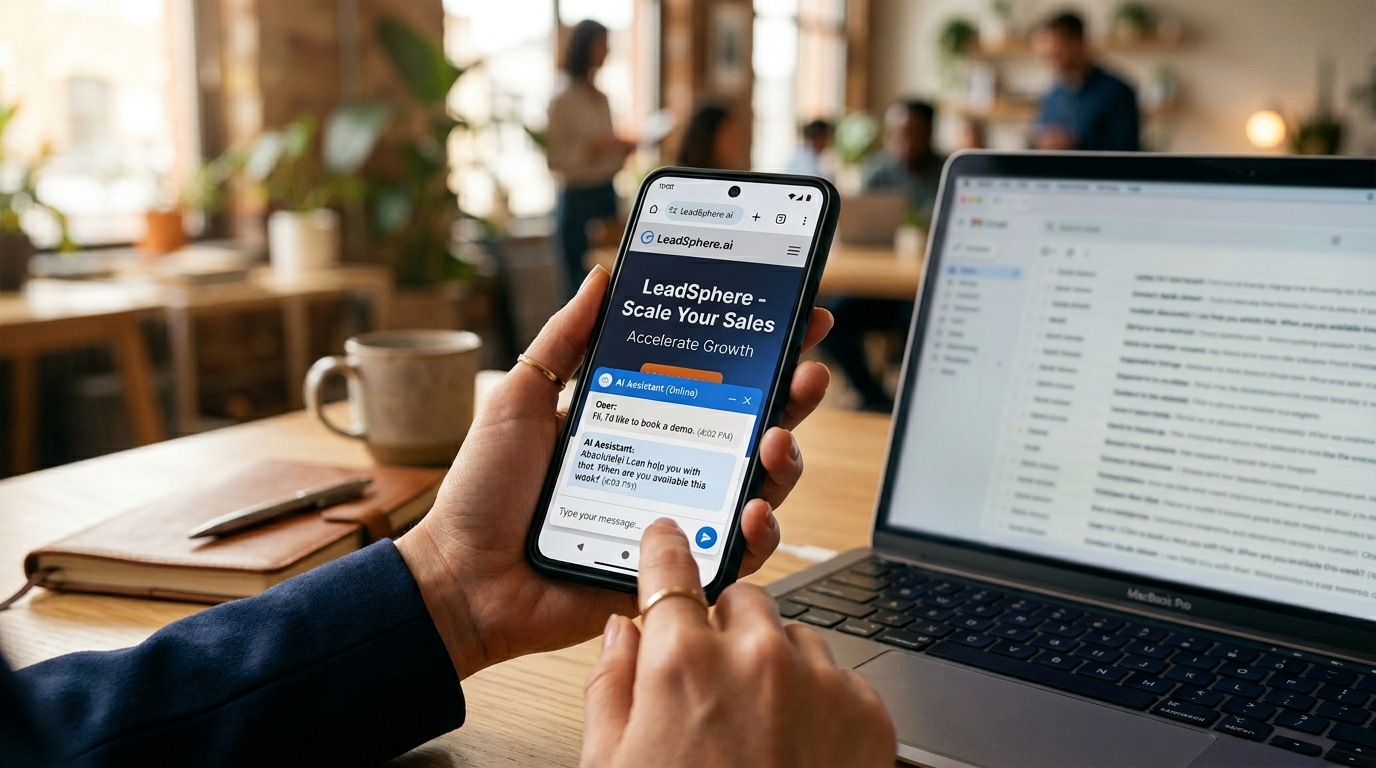
Once you click “Publish” on your website builder, go to your live website. You should see the chat bubble appear in the bottom corner of your screen.
Now, it is time to test the workflow to ensure it actually generates leads.
- Act like a customer: Open the chat and type a question related to your business (e.g., “Do you have any availability for a deep clean this Friday?”).
- Provide fake details: Let the AI answer, and when it asks for your contact info, provide a test name and phone number.
- Check your inbox: Go to your business email (or CRM, depending on your setup).
Within seconds, you should receive an email containing the structured lead. If the email arrives with your test details perfectly formatted, your lead generation engine is officially live.
Why Implementation Speed Matters
In local business marketing, execution is everything. Many business owners procrastinate on improving their websites because they assume it will be a month-long, expensive project.
By utilizing modern AI assistants, you bypass the development phase entirely. You can literally read this guide, configure your business context, paste the code into your website, and start capturing lead generation inquiries before the end of the day.
Using Selvanto for Easy Setup
If you are looking for a platform that makes this exact process as seamless as possible, we recommend reviewing Selvanto.
Selvanto is built specifically around this “no-code, high-conversion” philosophy. It allows local business owners to input their business data, customize their chat widget, and get the installation script in minutes. Instead of dealing with complex bot-builders, you get a system engineered purely to answer questions and send highly qualified leads directly to your email.
FAQ
Do I need a web developer to add a chatbot?
No. Modern AI chatbots are designed for business owners, not programmers. You usually only need to copy and paste a single short line of code into your website.
Will adding a chatbot slow down my website?
High-quality AI widgets load asynchronously, meaning they do not block or slow down the loading of your main website content and images.
Can I install an AI assistant on WordPress, Wix, or Shopify?
Yes. Because the installation uses a simple HTML snippet, it works on virtually any website platform or CMS, including WordPress, Squarespace, Wix, and custom sites.
How long does it take to set up an AI chatbot?
For a local business, the entire process—from writing down your business details to seeing the chat widget live on your site—usually takes less than 15 minutes.
What if I do not know how to program the AI?
You do not need to 'program' anything. You simply provide plain text about your business (like your opening hours and services), and the AI naturally understands how to use it.
Next step
To see how easy it is to implement this on your own site, check out the internal Selvanto guide.
Read about Selvanto